
Call 1 (425) 406-1174 to start a Data Recovery!
Mac Pro
Advanced Engineering Protocols: Mac Pro Tower Data Recovery
Recovering data from an Apple Mac Pro Tower depends entirely on the machine’s generation. Because the Mac Pro is Apple’s flagship workstation for film editors, audio engineers, and data scientists, a failure usually involves high-capacity storage arrays, complex RAID configurations, or hardware-encrypted modern logic boards.
At Seattle Data Recovery, we treat Mac Pro data loss at a component engineering level. Standard data recovery apps cannot handle modern Apple security systems or complex multi-disk failures. Our laboratory uses specialized hardware imagers and micro-soldering stations tailored to Apple’s APFS (Apple File System) and hardware encryption engines.
The Three Architecture Eras of Mac Pro Storage
To safely extract your files, our engineers must first identify which generation of the Mac Pro Tower you are running:
1. Modern Apple Silicon Era (Mac Pro M2 Ultra and Newer: 2023–Present)
- The Architecture: The modern Apple Silicon Mac Pro Tower looks like a modular desktop, but its storage architecture is highly integrated. It utilizes proprietary Apple Storage Modules that slide into specific slots on the motherboard. However, these modules do not contain standard standalone SSD controllers. The actual flash memory controller is built directly into the M-series Ultra CPU, which automatically encrypts all data using hardware-bound AES-256 keys.
- The Recovery Protocol: If the Mac Pro Tower is completely dead due to a massive power surge or liquid damage, moving the storage modules to a different Mac Pro will fail. The data is cryptographically tied to that specific motherboard's CPU. Seattle Data Recovery must perform component-level motherboard repair. Under high-powered microscopes, our micro-soldering engineers isolate and replace shorted capacitors, blown power lines, or fried Power Management ICs (PMICs) to stabilize the original board. This allows the CPU to boot, decrypt its own storage modules, and safely export the data.
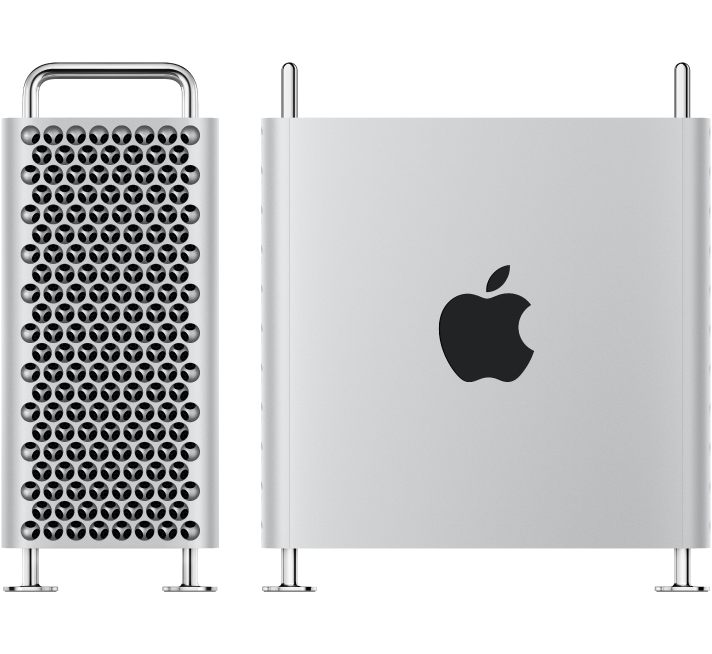
2. The Intel Modular SSD Era (Mac Pro "Cheese Grater" Tower: 2019–2023)
- The Architecture: These high-end Intel-based towers use custom Apple flash storage blades. Much like the Apple Silicon era, these blades lack independent controllers; instead, they are cryptographically paired and managed by Apple’s onboard T2 Security Chip.
- The Recovery Protocol: If a catastrophic electronic failure prevents the board from turning on, our engineers must perform a delicate Cryptographic Chip Transplant. We cleanly desolder the original CPU, the T2 chip, and the flash storage chips from the damaged motherboard, reball them, and transplant the entire interconnected group onto a functional donor board to restore the encryption path.
3. Legacy Intel Towers (Mac Pro "Trash Can" 2013 and Classic Towers 2006–2012)
- The Architecture:
- 2013 "Trash Can" Cylinder: Uses a single, proprietary removable Apple PCIe SSD blade.
- Classic Silver Towers (Dual-Processor): Features four internal 3.5-inch SATA hard drive bays, often configured by professional editors into internal RAID 0 (Striped) or RAID 5 arrays for speed.
- The Recovery Protocol:
- Removable SSDs: We extract the proprietary blade and place it into specialized hardware imagers (like the DeepSpar or PC-3000) that can directly manage degrading flash sectors.
- Multi-Drive RAID Arrays: If one or more mechanical drives inside a classic tower fail or start clicking, we perform physical micro-surgery inside our ISO 5 Cleanroom using exact matching donor heads or spindle motors. Once all individual drive members are cloned, our engineers manually extract the raw metadata layout, realign the block sizes, and virtually reconstruct the striped array to safely export your project files.
Critical Protocol for Mac Pro Operators Facing Failure
If your Mac Pro Tower suddenly drops a high-capacity drive array, flashes a Question Mark Folder, or refuses to power on during a critical deadline, your immediate actions are vital:
- Do Not Attempt an Automatic RAID Rebuild: If an internal multi-drive array degrades or a drive starts clicking, do not force an automated software rebuild. The extreme stress of a rebuild will often cause a secondary, aging drive in the array to fail mechanically, destroying the data permanently.
- Cut Power to Clicking Units Instantly: If you hear a physical clicking, ticking, or grinding noise coming from the tower's drive bays, shut down the system immediately. Forcing a mechanically failing hard drive to spin allows the broken heads to scrape the magnetic film off the platters, turning your data into unrecoverable dust.
- Avoid Destructive System Utilities: Running automated disk checkers like Disk Utility's First Aid or terminal directory repairs on an unstable APFS volume can accidentally overwrite ghost remains of your original partition maps.
- Details
- Written by: Seattle Data Recovery
- Category: Mac Pro
On all Apple Silicon MacBook Pro models (M1 through M4/M5 series), the storage architecture is completely integrated. There is no removable SSD; instead, raw NAND flash memory chips are soldered directly onto the logic board. The flash controller, wear-leveling management, and encryption engines are baked directly into the main M-series System-on-Chip (SoC) Secure Enclave.
Because of this architectural design, if the internal storage chips fail physically or cryptographically, the MacBook Pro becomes completely unbootable—even from an external drive [1]. The internal NAND chips host critical, cryptographically signed boot partitions and local security policies (
LocalPolicy) that the M-series processor must read just to initiate the power-on sequence.Below are the most common hardware and firmware storage failures specific to Apple Silicon MacBook Pros, along with their diagnostic symptoms and error codes.
1. NAND Power Rail Failures (Corrupted Power Delivery)
- The Cause: Apple Silicon MacBook Pros use specialized Power Management Integrated Circuits (PMICs) to feed clean voltage to the soldered NAND chips (e.g., the 2.5V or 1.8V NAND power rails). Due to physical drops, liquid exposure, or minor electrical surges, these capacitors or resistors can short to ground.
- The Symptom: The MacBook Pro becomes completely dead overnight. It will not show a charging icon, spin the fans, or display an Apple logo. When plugged into a USB-C ammeter, it typically draws only a fixed 5V at 0.0A to 0.4A instead of triggering the normal 20V power delivery profile.
- The State: The machine is trapped in a hardware lockout and can usually only be detected by another Mac when plugged into the specific DFU-supported USB-C port.
2. Excessive SSD Wear-Out (The Swap Memory Bottleneck)
- The Cause: This is highly prevalent on baseline 8GB RAM configurations, but it also impacts heavy workflows on 16GB/32GB models. When running massive creative timelines (Xcode, 8K video rendering, or running heavy local LLMs), the system aggressively uses the SSD as virtual memory (Swap).
- The Symptom: The NAND flash experiences an incredibly high Write Amplification Factor (WAF). Once the cells cross their maximum Terabytes Written (TBW) structural lifespan, they can no longer hold data states safely.
- The Result: Users experience sudden Kernel Panics with logs pointing to
IONVMeControllertimeouts, sudden file corruption, or macOS throwing a "Disk Not Ejected Properly" error for the internal drive while active.
3. "Panic-on-Boot" Loop (Broken Cryptographic Handshake)
- The Cause: Every byte on the NAND chips is hardware-encrypted using a key physically fused into the Secure Enclave inside the M-series chip. If a cluster of NAND cells holding core system file trees degrades or fails, the cryptographic integrity verification checks fail during startup.
- The Symptom: The MacBook Pro turns on, displays the Apple logo briefly, progress bar loads halfway, and then the screen snaps black and the machine restarts. It becomes trapped in an infinite bootloop.
- The Diagnostic: Booting into Options/Recovery Mode often fails or demands an administrator password that the machine refuses to accept because it can no longer read the local authentication database.
Modern MacBook Pro Diagnostic Reference Codes
If you boot your Apple Silicon MacBook Pro into Apple Diagnostics (hold down the Power button from a completely off state until "Loading startup options" appears, then press Command + D on your keyboard), look for these exact codes:
VDH002/VDH004: Confirms a definitive, irreversible hardware fault has been detected within the internal storage subsystem. The logic board usually requires a cleanroom component-level repair or total replacement.SDR001: Indicates a critical communication barrier between the main M-series storage controller fabric and the physical NAND routing lanes.
DFU Restoration Failures (The Ultimate Diagnostic)
When a MacBook Pro suffers a storage failure, professionals attempt a firmware Revive or Restore via Apple Configurator from a host Mac. If the storage is dead, the restoration process will stall and throw these specific errors:
- Error 4014 / Error 9: The configuration utility successfully sends the initial firmware blocks, but the MacBook Pro drops offline mid-transfer because the NAND cells cannot be initialized or partitioned.
- "Gave up waiting for device to transition from DFU state": The target MacBook Pro times out because the Secure Enclave cannot establish a reliable handshake with the soldered flash storage.
Crucial Data Recovery Advice
Because the storage is cryptographically married to your specific M-series chip, you cannot desolder the storage chips and place them into a OEM board or an external reader to extract files [1]. If the chips are moved, the encryption key is lost, and the data remains unreadable garbled ciphertext.
If your MacBook Pro is currently acting up, let me know if it is completely dead, looping on the Apple logo, or giving you a specific error screen [1]. I can help you figure out if a non-destructive DFU Revive can save your data!
- Details
- Written by: Seattle Data Recovery
- Category: Mac Pro
- Exact Model: ST3000DM001 (3TB, 7200 RPM, 64MB Cache)
- APN: 655-1726H
- The Breakdown: Implemented at the tail end of the Mac Pro 5,1's reign, this high-density 3TB option holds the unfortunate reputation of having one of the highest annual failure rates in hard drive history.
- Common Failures:
- Premature Platter Scratching / Head Crash: The mechanical design of the head parking mechanism was highly unstable. The read/write heads frequently drop directly onto the magnetic storage substrate, shedding physical debris inside the hermetically sealed chassis. This instantly obliterates user data and causes total mechanical failure.
- Sudden Death Syndrome: The drive will go from fully functional to entirely non-responsive overnight without any cautionary SMART errors or clicking warnings.
- Details
- Written by: Seattle Data Recovery
- Category: Mac Pro
- Common Component Identifiers: APPLE SSD SM0256M, SM0512M, SM1024M, SM2048M
- Interface Generation: Proprietary PCIe 3.0 x4 Custom Blade
- Architectural Deployment: Mac Pro (2019) Factory Base Configurations
The Design Architecture
For the initial launch of the 2019 modular tower, Apple heavily partnered with Samsung to design high-density flash storage modules. These modules utilize a distinct, extra-wide edge connector layout that does not fit standard M.2 slots. Because the Intel Xeon processor lacks built-in secure storage handling, these Samsung modules communicate directly with the onboard Apple T2 Security Chip via dedicated PCIe lanes. Every byte written to the raw TLC NAND cells is encrypted on the fly with a hardware key burned into the T2 silicon.
Known Operational Characteristics & Vulnerabilities
- Cryptographic Brick Lock: The most common "failure" of this configuration isn't mechanical—it is cryptographic. If the Mac Pro suffers a catastrophic power outage or logic board short circuit that damages the T2 chip, the data on the Samsung modules becomes completely unrecoverable, even if the flash cells themselves are pristine.
- The "Paired Module" Dependency: In configurations larger than 256GB, Apple utilizes two identical Samsung modules slotted into designated "Slot 1" and "Slot 2" bays on the logic board. The T2 chip stripes data across both modules. If one module suffers a controller or NAND block failure, the entire array collapses, and the system fails to chime or pass the Power-On Self-Test (POST).
- Details
- Written by: Seattle Data Recovery
- Category: Mac Pro
If you are maintaining one of these vintage machines today, note that Apple's custom firmware limits how third-party disk tools read thermal reporting data. If a factory drive fails, replacing it with a modern off-the-shelf SATA SSD (using a 2.5-to-3.5-inch sled adapter like the OWC Mount Pro) is highly recommended.
- Details
- Written by: Seattle Data Recovery
- Category: Mac Pro
The aluminum tower Apple Mac Pro (2006–2012, Models 1,1 through 5,1) was the pinnacle of modular workstation design. Central to its appeal were four cable-free, slide-in 3.5-inch drive bays.
Apple sourced these mechanical hard disk drives (HDDs) from Seagate, Western Digital, and Hitachi. Because the Mac Pro relied heavily on internal thermal monitoring, Apple shipped these drives with custom Apple firmware (indicated by an Apple logo and Apple Part Number/APN on the label). This firmware altered how the drive reported SMART data and handled fan control speeds.
Below is an exhaustive technical breakdown of every major factory mechanical hard drive model used in legacy Mac Pro towers, along with their notorious real-world failure modes.